
A lot of “best Squarespace plugins” lists try to name every tool on the internet. This one doesn’t. These are the Squarespace plugins we sell in our plugin store (which are obviously the best), plus two free CSS tools.
Two of them are on our own site today. Highlight on Hover is in the Custom CSS on logcabindigital.com, so the nav links fade and highlight as you move around the menu. The Alternating Blog Category Sidebar is live on our blog. A custom version of the Mega Menu plugin is also our live navigation menu.
How We Picked These Plugins
Every plugin here is for sale, or free to download, in our store today.
Squarespace AI Visibility Setup is in the store too, at $279 CAD. It’s a one time setup service, so it gets a short note at the end instead of a spot in the plugin list.
And if a plugin isn’t enough for what you need, that’s normal. Some jobs still need custom code, or a hand installing the plugin. There’s a note on that near the end.

Best Squarespace Plugins for Stores and Currency
Squarespace Auto Currency Converter is $67 CAD.
If you sell to more than one country, visitors often land on prices in your store currency and have to do the math themselves. This plugin detects where a visitor is and shows prices in their local currency. It’s built for real price formats, including symbols before or after the number, spaces and currency codes. There’s no manual currency toggle for the visitor to hunt for.
Checkout still runs in your store currency. The plugin adds a note in the mini cart and on the cart page, so that’s clear before anyone pays.
A single site licence is included. The product page also offers an Unlimited Sites option for $62 CAD more, one time.
We wrote a walkthrough for this one as well: How to automatically show local currency on your Squarespace site.
Best Squarespace Plugins for Menus and Navigation
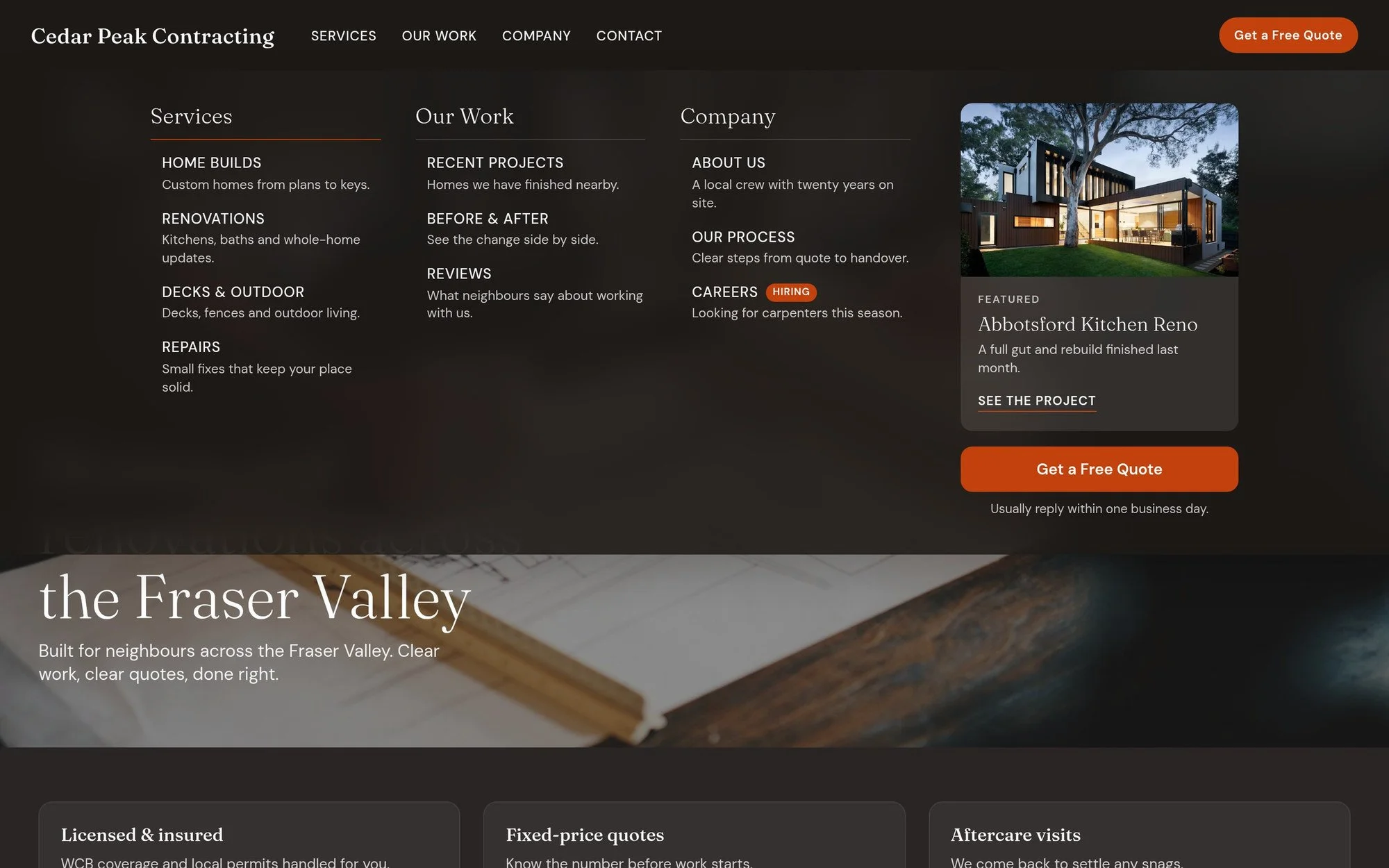
Squarespace Mega Menu Plugin is $59 CAD.
Squarespace dropdowns are fine for a short list. Once you have a lot of pages, they get messy. This plugin turns the dropdowns you already have into a mega menu with several columns, with an optional one line description under each link. You can add a featured card (a photo with a title and link) and a button to your booking or contact page. On phones, groups open with a tap, and the card and button stay at the bottom of the screen.
You still edit the menu in the Pages panel. The descriptions, card and button all live on one hidden page, using normal Squarespace blocks. It uses the standard single site licence. The product page also offers an Unlimited Sites option for $59 CAD more, one time.
One thing to know: the menu on our own site is a separate custom build, so our header isn’t a demo of this one (but it’s similar! And we’re absolutely available for hire to make you one like it!)
For a smaller nav tweak, the free Highlight on Hover Navigation tool is in the store at $0. Paste the CSS into Custom CSS and your nav links highlight on hover. You can change how fast the transition runs and how faded the other links get. It comes with an unlimited use licence.
It’s the same CSS we run on our own site.

Best Squarespace Plugins for Blog Layouts
If your blog uses Squarespace 7.1’s Basic Grid layout, Blog Category Sidebar (Basic Grid) is $49 CAD.
If it uses the Alternating Side-by-Side layout, Blog Category Sidebar (Alternating Blog) is also $49 CAD.
They’re two different plugins, so buy the one that matches your blog layout.
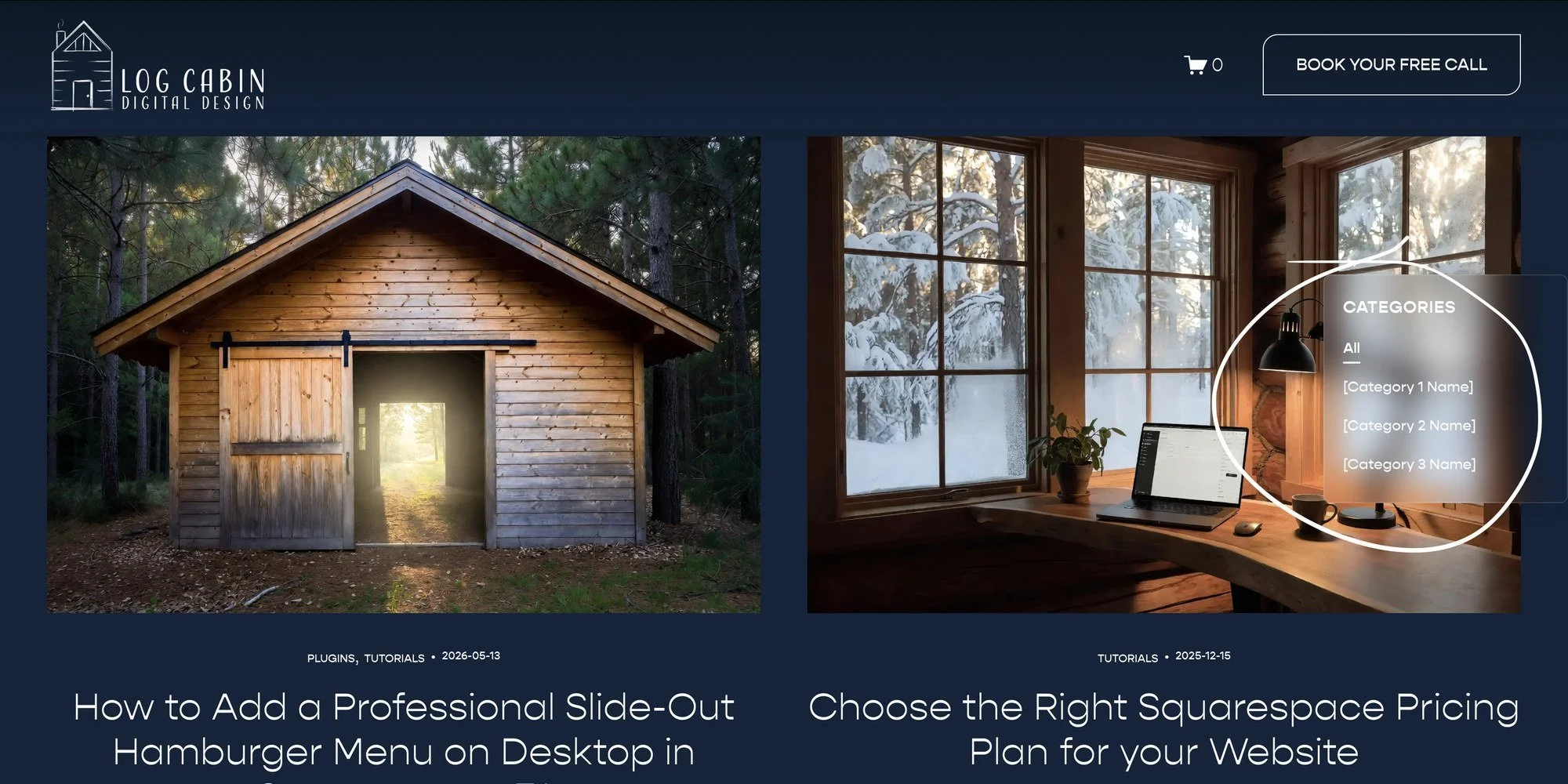
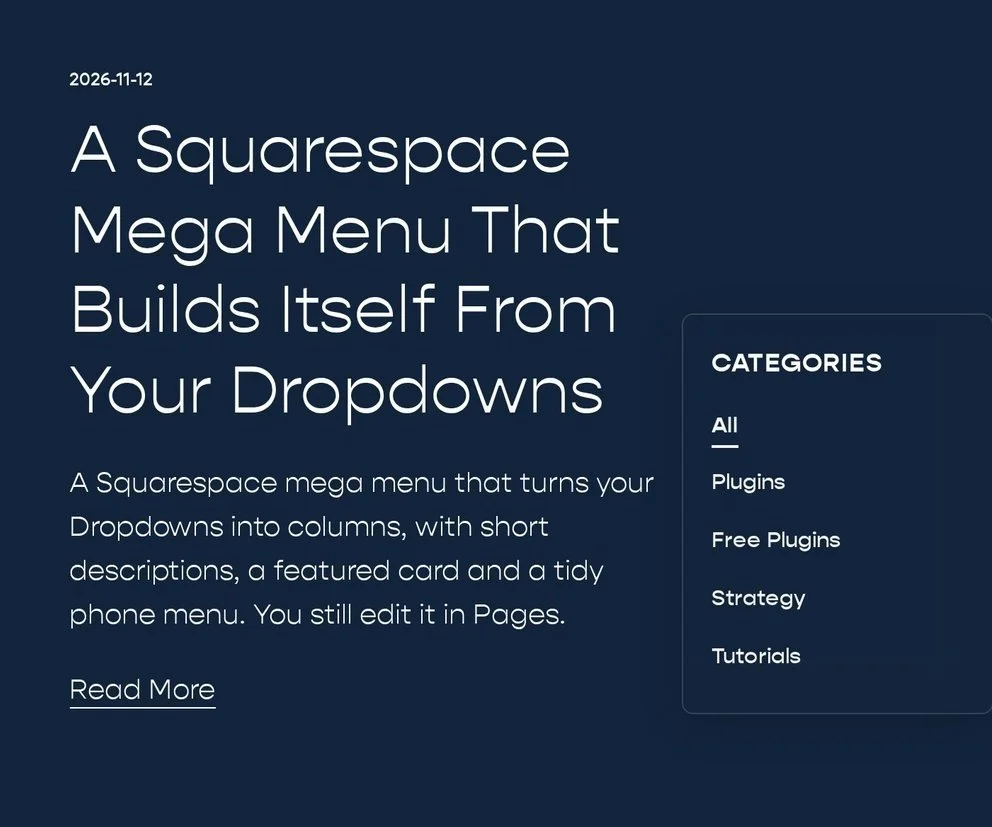
Each one adds a sticky category sidebar, so readers can jump to a topic and keep that list in view as they scroll. According to the product pages, each one has a frosted glass look that can follow your brand colours and a layout that works on phones, plus notes for changing the colours, spacing and category links. After someone picks a category, the page scrolls back to the top. A single site licence is included, with an Unlimited Sites option for $50 CAD more, one time.
The Alternating Blog version is the one on our own blog, if you want to see it working. We don’t run the Basic Grid version.
Visual Hover and Section Effects
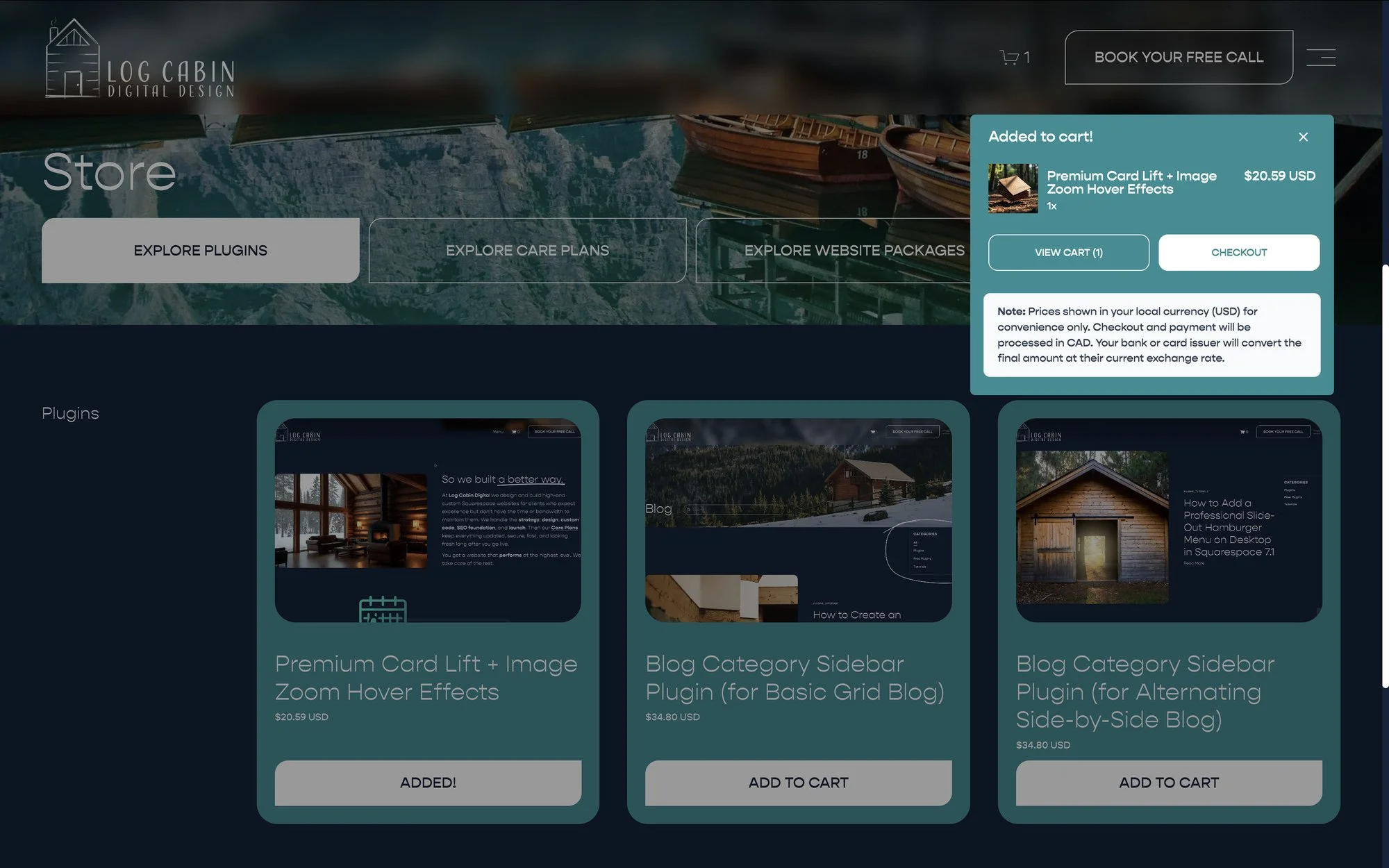
Squarespace Card Lift + Image Zoom Hover Plugin is $29 CAD.
This one is a CSS plugin. On hover, cards lift with a soft shadow and the image zooms in a little. The product page says there’s no jump when the cursor leaves, and that it works on Summary Blocks, Portfolio, Products and List sections. You get the CSS and install instructions. A single site licence is included. Unlimited Sites is $30 CAD more, or $59 CAD total. If you bought Card Lift before, the product page says your unlimited licence stays.
There’s a walkthrough for this one too: Premium card lift image zoom hover effects for Squarespace.

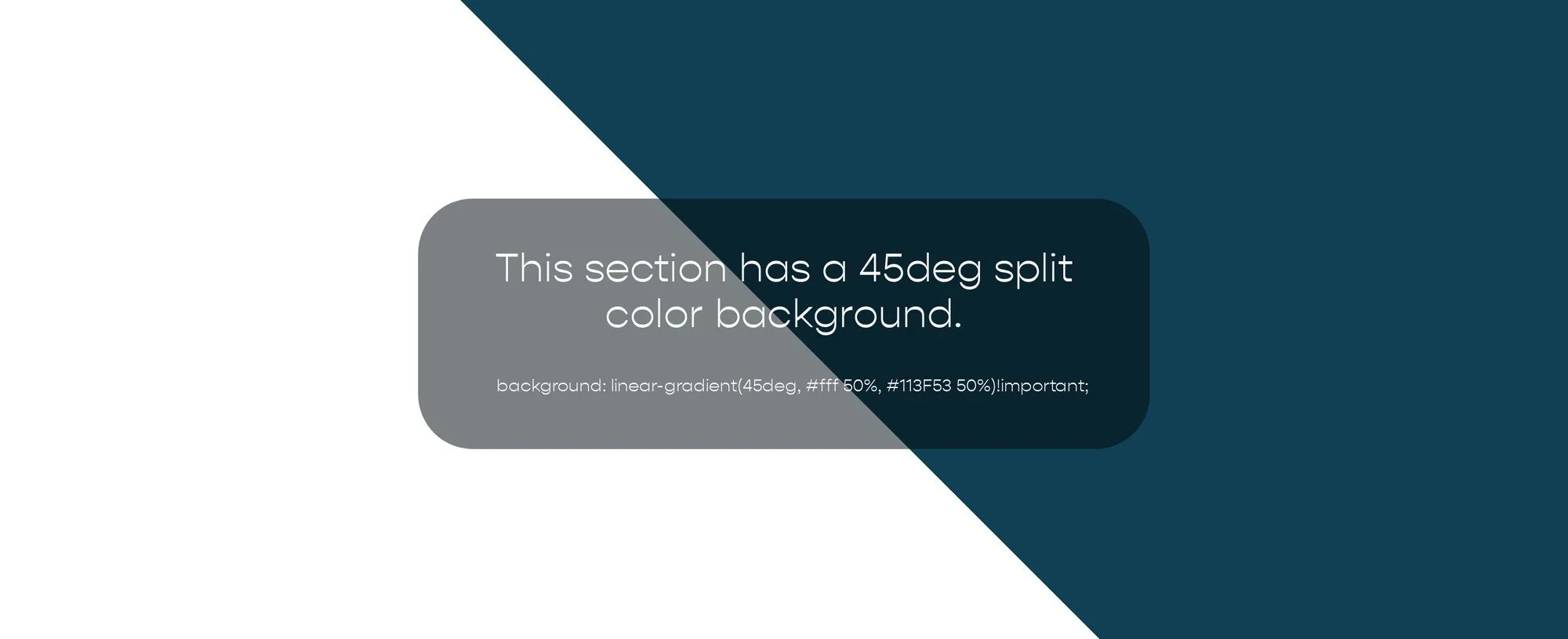
FREE Split Color Section Background is $0. It splits a section background into two colours, at an angle you can change. Paste the CSS into Custom CSS, then add your section ID. You can change the colours too. It comes with an unlimited use licence.
You can see a few variations on the live demo at logcabindigital.squarespace.com/split-color-secti.
Both free tools are also on our Free Plugins page.
When a Plugin Is Not Enough
A plugin is a good fit when the job is clear and the tool already does it: show local prices, tidy a big menu, add a blog category sidebar, or give cards a simple hover.
It’s a bad fit when you need something the plugin doesn’t do, or when your layout is unusual enough that a ready made tool will fight it. In those cases we write custom code, or we install the plugin for you and then fix whatever still looks off. On the paid plugins, that install option is on each plugin’s page.
If you’re not sure which way to go, book a call and bring your URL. We can tell you whether one of the store plugins will cover it.
A Note on Squarespace AI Visibility Setup
Squarespace AI Visibility Setup is $279 CAD. It’s in the same store, but it’s a one time setup service that we do for you. We go into your Squarespace 7.1 site, make sure AI tools can reach it, and leave you a short written summary of what we did. If that’s the job you have, start on that page.

Squarespace Plugins FAQ
Do These Plugins Work on Squarespace 7.1?
Yes, and only 7.1. That goes for every plugin in this post. The two blog sidebar plugins each name their layout (Basic Grid, or Alternating Side-by-Side). The AI Visibility Setup page also says the site needs to be on 7.1.
Will the Currency Converter Change the Currency at Checkout?
No. Auto Currency Converter shows local prices while people browse. Checkout still runs in your store currency, and the plugin adds a note in the mini cart and on the cart page to say so.
Which Blog Sidebar Should I Buy?
The one that matches your blog layout. Use the Basic Grid plugin for a Basic Grid blog, and the Alternating Blog plugin for an Alternating Side-by-Side blog. They’re sold separately, and both are $49 CAD.
Are the Free Plugins Really Free?
Yep. Highlight on Hover Navigation and Split Color Section Background are $0 in the store, and both come with an unlimited use licence.
Can You Install a Plugin for Me?
Yes, for sure. You can buy the plugin in the store and follow the instructions, or add the install option when you buy it and we’ll set it up and test it for you. On Auto Currency Converter and Card Lift, that option is called Simple Plugin Installation, and it’s $89 CAD. On the Mega Menu and both blog sidebars, it’s called Advanced Plugin Installation, and it’s $149 CAD. You’ll see the right one on that plugin’s page. The free CSS tools don’t have that option, so book a call if you want a hand with those.
Need a Plugin, or a Hand Installing One?
If one of these would help your site, they’re in our plugin store. If you want us to install a paid plugin, add the install option on its product page when you buy it. If you need something custom, or a hand with a free tool, book a call.